Guide 2
Scan your first item
Take a screenshot in game, drop it in, check the rolls we read, and save it to your stash.
New here? What is Sanctuary Stash? covers what the app does and why we'd rather withhold a price than guess: worth a quick read first. This guide walks through adding your first item by scanning a screenshot.
Open Add Item
Click + Add Item in the top bar on any page of the app. The Add Item modal opens with two columns: Scan Item on the left, and a form on the right that fills in as the scan reads your item.
Screenshot the tooltip in game
In Diablo II: Resurrected, hover the item so its full tooltip is showing, then take a screenshot. A few things make scans read cleaner:
- Keep the full tooltip visible, with no text cropped off the edges.
- Avoid overlapping UI, like the inventory grid or the minimap, over the tooltip.
- D2R's UI scale works best between 100 and 125 percent.
We accept JPG, PNG, WebP, and GIF screenshots, plus HEIC photos straight from an iPhone.
Drop it in
Click Scan Screenshot to select a screenshot, or drag one onto the drop zone that says "Drop a screenshot here" (there's also an "or Browse files" link if you would rather pick a file). Either way, your screenshot appears in the Scan Item column and scanning starts right away.
While it works, you'll see it cycle through what it's doing: detecting the base item, matching affixes, parsing rolls, and cross-referencing the catalog. A "Recognized" badge appears when it's done, and the form on the right fills in with the item name, base type, and affixes it read.
Review what we read
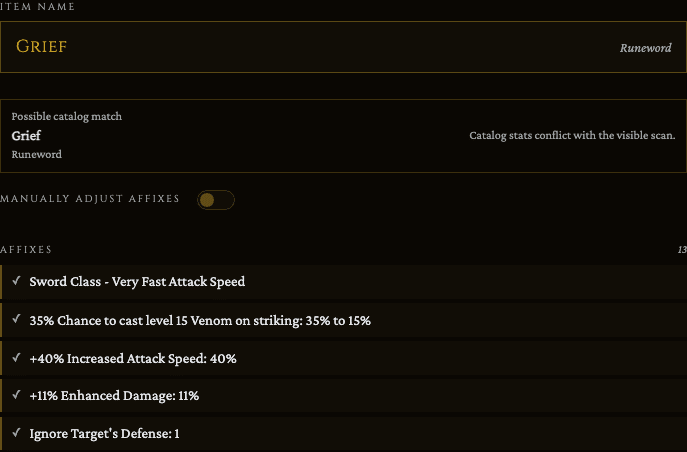
Check the item name and the affixes it filled in before you save. When the scan matches an item in our catalog cleanly, it fills everything in with no extra step and shows no card at all. When it can't be sure, a "Possible catalog match" card appears instead, showing exactly one of these three states:
- A "Use this" button appears when the catalog couldn't confirm or rule out the match. Click it only if the item matches your tooltip.
- A "Catalog stats conflict with the visible scan" note appears when the catalog's stats don't match what the scan read, like the Grief below. There's no button here: compare the affixes with your tooltip yourself and fix anything that's off before saving.
- A "Review this match manually" note means the same thing: nothing to click, just check it against your tooltip before saving.
Turn on "Manually adjust affixes" to edit any line by hand. With it on, a "Scan was unsure about:" row lists the specific fields the scan flagged as uncertain, so you know exactly what to double check.
Save it
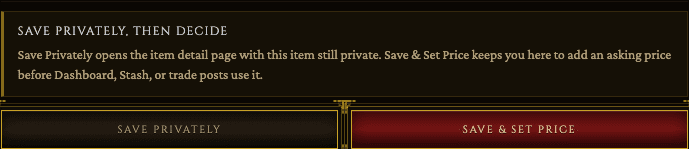
When it looks right, choose Save Privately to add it to your stash as is, or Save & Set Price to open a pricing panel first and then Save & View Item. Either way, the item lands in your stash right after.
Try it with your own loot
Start free and save your first item in about a minute.